

As I mentioned, in my last post, I’m starting work on a new coding project to exercise newfound learnings about .NET Aspire and incorporating AI into a working application.
A little background will be useful before I get to the point about VS Code mount configuration.
First things first – tools. I have worked almost exclusively in VS Code since it came out. I like that it’s lightweight and its free. So, unless I indicate otherwise, my posts will be from a VS Code perspective.
Second, I like to work in Linux. So I use WSL2. In order to do that, I use the remote connector that allows me to use VS Code in the context of WSL2. If you’re new to that, here’s a link https://code.visualstudio.com/docs/remote/wsl I should also point out that I’m a fan of VS Code’s devcontainers. They are a great way to bundle dependencies, specify settings, and generally get reuse – especially in a team setting.
Now to the point…
Mount Configuration
When running a devcontainer, one of the useful configuration settings you can make is to mount a path to a file system folder from your host computer.
In my case, I wanted to mount to my .kube folder in order to pick up my kube config. My uncertainty came in when I was unsure of whether I should map to my WSL2 file system or to the Windows host file system. I started VS Code from WSL2, so my first inclination was to define my mount configuration and point to the WSL file system. I was wrong. Instead, I found that I needed to specify the path to my Windows host.
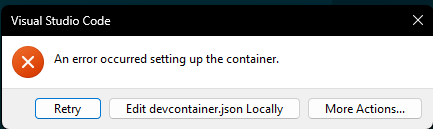
By the way, if you get your mount configuration wrong, you’ll get a nasty little popup error and your project won’t open. Fortunately, VS Code allows you to edit the devcontainer.json file locally to fix your problem and try again.
Mount Syntax
The mount syntax itself is pretty straightforward. In your devcontainer.json file, you’ll need to add the following section and of course substitute your actual paths.
"mounts": [
  "source=/local/source/path/goes/here,target=/target/path/in/container/goes/here,type=bind,consistency=cached"
]
Here’s a link to Microsoft’s documentation on adding a local file mount.
https://code.visualstudio.com/remote/advancedcontainers/add-local-file-mount
That’s it, hopefully you found this helpful.
Happy Coding!
If you found this post informative, please considering subscribing to get new posts delivered to your inbox.



 The Architect Guild
Leave a comment